
BOM to PDF
Exports the bill of materials (BOM) and generates PDFs of the drawings associated with the assembly, with merge, watermark, and resolution options.
What it is for
Automates assembly documentation: extracts the BOM to Excel/CSV and produces individual PDFs or one merged PDF of all linked drawings.
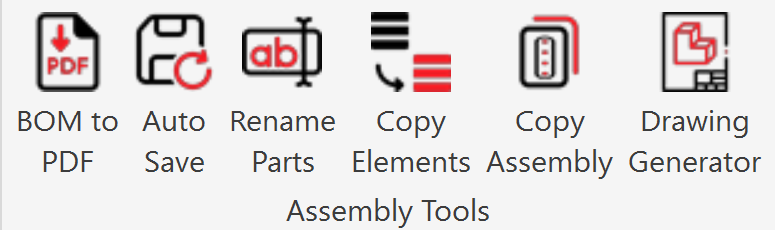
Where to find it
| Environment | Panel | Button |
|---|---|---|
| Assembly | Assembly Tools | BOM to / PDF |
Prerequisites
Before clicking Generate files, check the following:
| Requirement | Detail |
|---|---|
| Assembly document | An .iam must be open and active |
| Project Number | Required in iProperties → Design Tracking Properties → Project. If empty, you will see: "Assembly must have a Project Number to proceed" |
| BOM Import Template | BOM customization XML configured in Settings (see below). Without this file the tool fails |
| Associated drawings | Needed only if you enable Create PDFs |
| Microsoft Excel | Required if you export the BOM as .xls or .xlsx |
| Valid license | Active Inventor Tools key |
Important: BOM configuration is not optional in practice. If you do not set a valid XML template in Settings, generating files can show "The Default Template file could not be found. The program will exit."
Step by step
1. Configure Settings (first time)
- Open the working assembly.
- Go to MicroCAD → Assembly Tools → BOM to PDF.
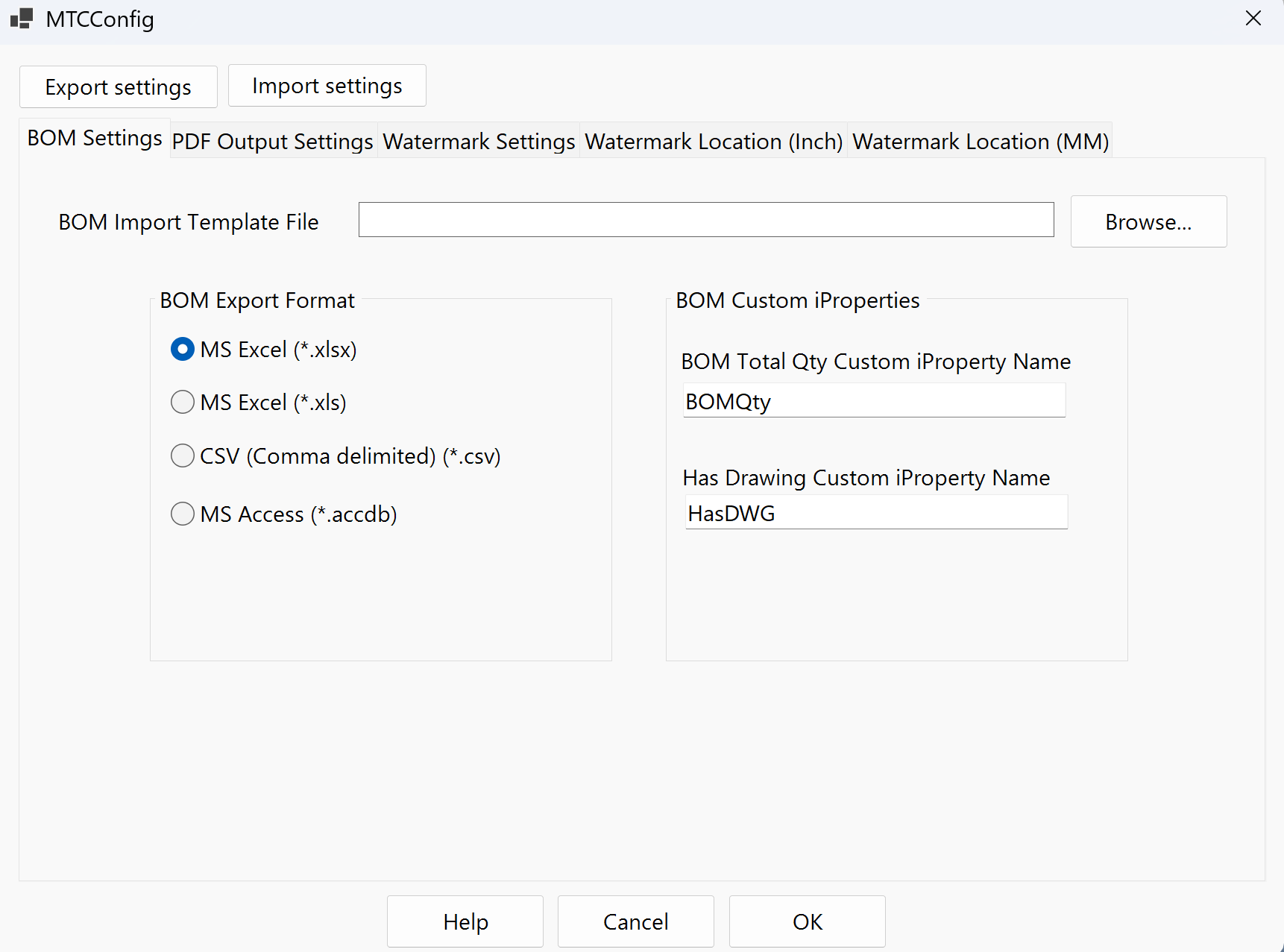
- Click Settings (upper-right corner of the dialog).
- On the BOM Settings tab, click Browse next to BOM Import Template File.
- Select a BOM customization
.xmlfile (see BOM template). - Configure export format (xls, xlsx, csv), BOM properties, and PDF/watermark options on the other tabs.
- Click OK to save the configuration.
2. Generate files
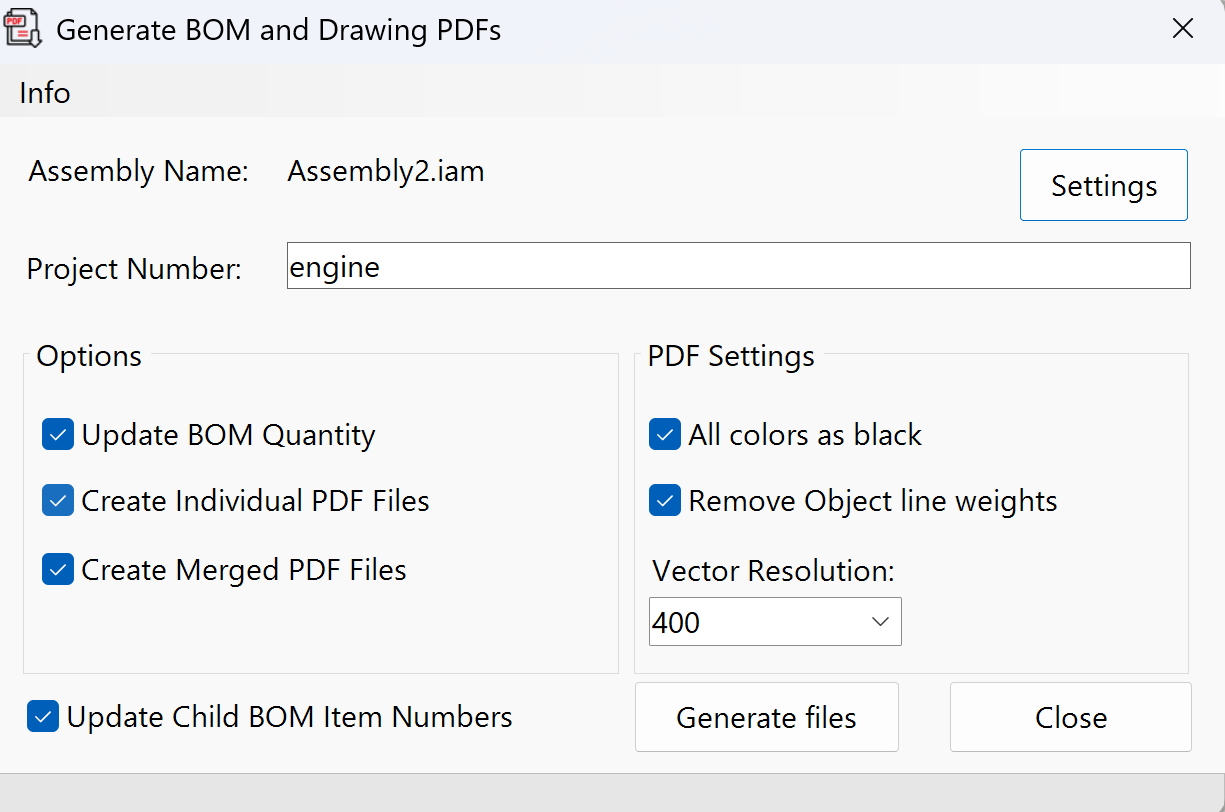
- Confirm that the Project Number appears in the main dialog (it is read from the assembly iProperties).
- Select the desired Options (update quantities, create PDFs, merge PDFs, etc.).
- Click Generate files.
- Wait for "The process has completed successfully".
- Use Close to open the output folder in File Explorer.
BOM template (XML file)
The tool uses a BOM Import Template (.xml) to define which columns and properties to export from Inventor's structured BOM.
How to get the XML file
| Option | Description |
|---|---|
| Export from Inventor | In the assembly: BOM → Export → Customize structure, save the customization as .xml |
| MCAD template | Request MTC_BOM_Default.xml (or equivalent) from your administrator or MCAD support |
| Configured path | Must be an accessible path on disk; the setting is stored in Prj_BOM_to_PDF.dll.config |
What happens if the template is missing
If BOMPath is not configured or the file does not exist, the tool tries a fallback in the Inventor installation folder:
[Inventor]\Resources\MTC_BOM_Default.xml
That file usually does not exist, so this error appears and the process stops:
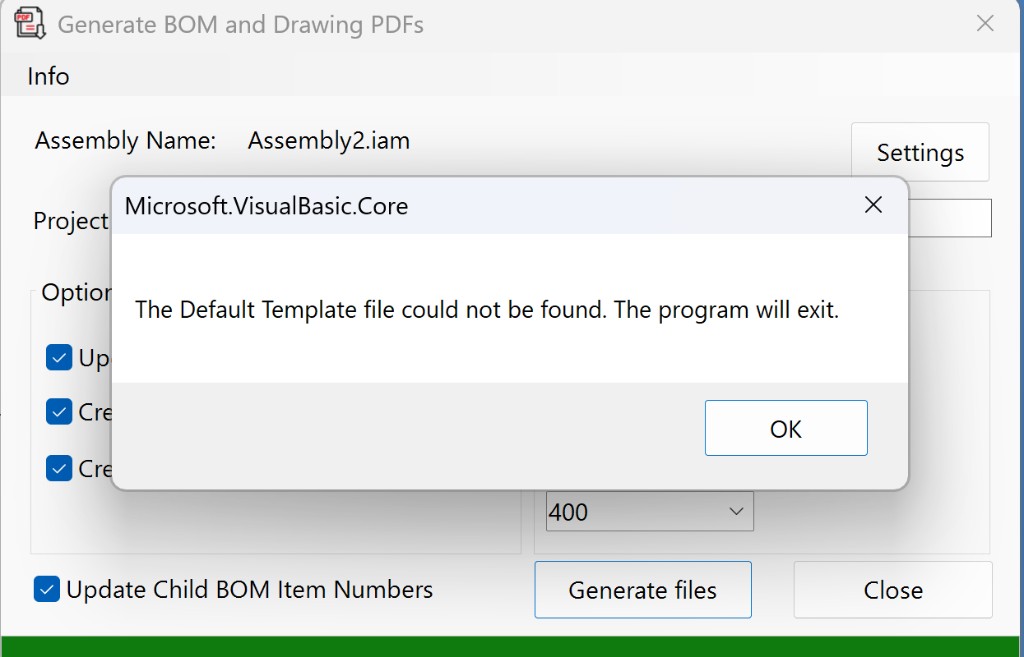
Solution: open Settings → BOM Settings → Browse, select a valid .xml, and try Generate files again.
Main dialog options
| Option | Description |
|---|---|
| Assembly Name | Active assembly name (read-only) |
| Project Number | Project number (from iProperties); required |
| Update BOM Quantities | Recalculates quantities before export |
| Create PDFs | Generates a PDF for each associated drawing |
| Merge PDFs | Combines all PDFs into a single file |
| Update Child BOM Item Numbers | Updates BOM numbering in subassemblies |
| PDF resolution | Vector PDF resolution (150–4800) |
| Object lineweights | Respects drawing line weights |
| All colors as black | Converts the entire drawing to black |
Settings options
BOM Settings
| Option | Description |
|---|---|
| BOM Import Template File | Required XML file — defines BOM columns |
| BOM Qty Property Name | iProperty name for quantities (default: BOMQty) |
| Has DWG Property Name | iProperty that indicates whether the component has a drawing (HasDWG) |
| Export format | xls, xlsx, csv, or Access |
PDF Output Settings
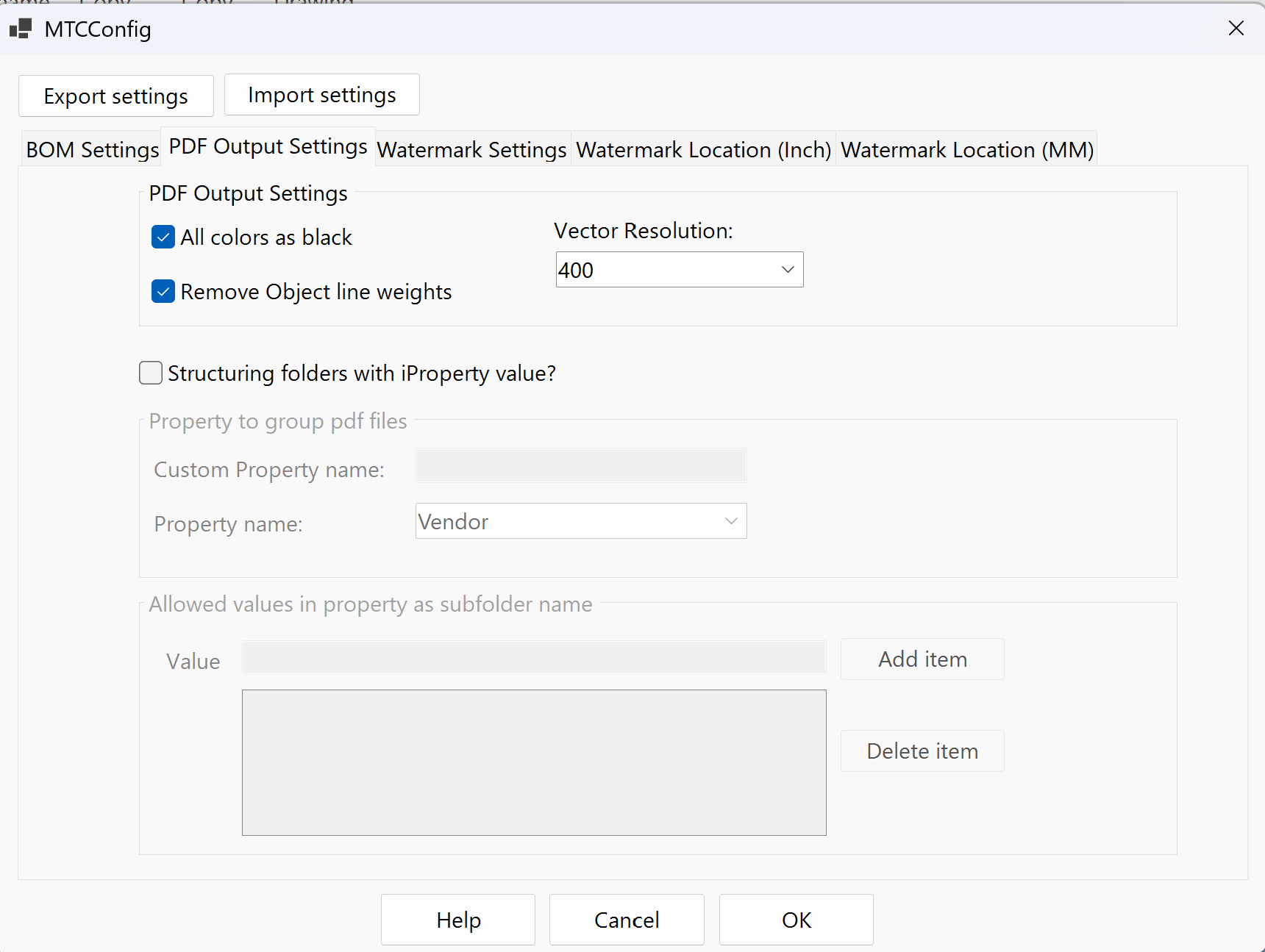
| Option | Description |
|---|---|
| PDF Vector Resolution | Export resolution |
| Object Lineweights | Line weight in the PDF |
| All Colors as Black | Export in black and white |
Watermark Settings
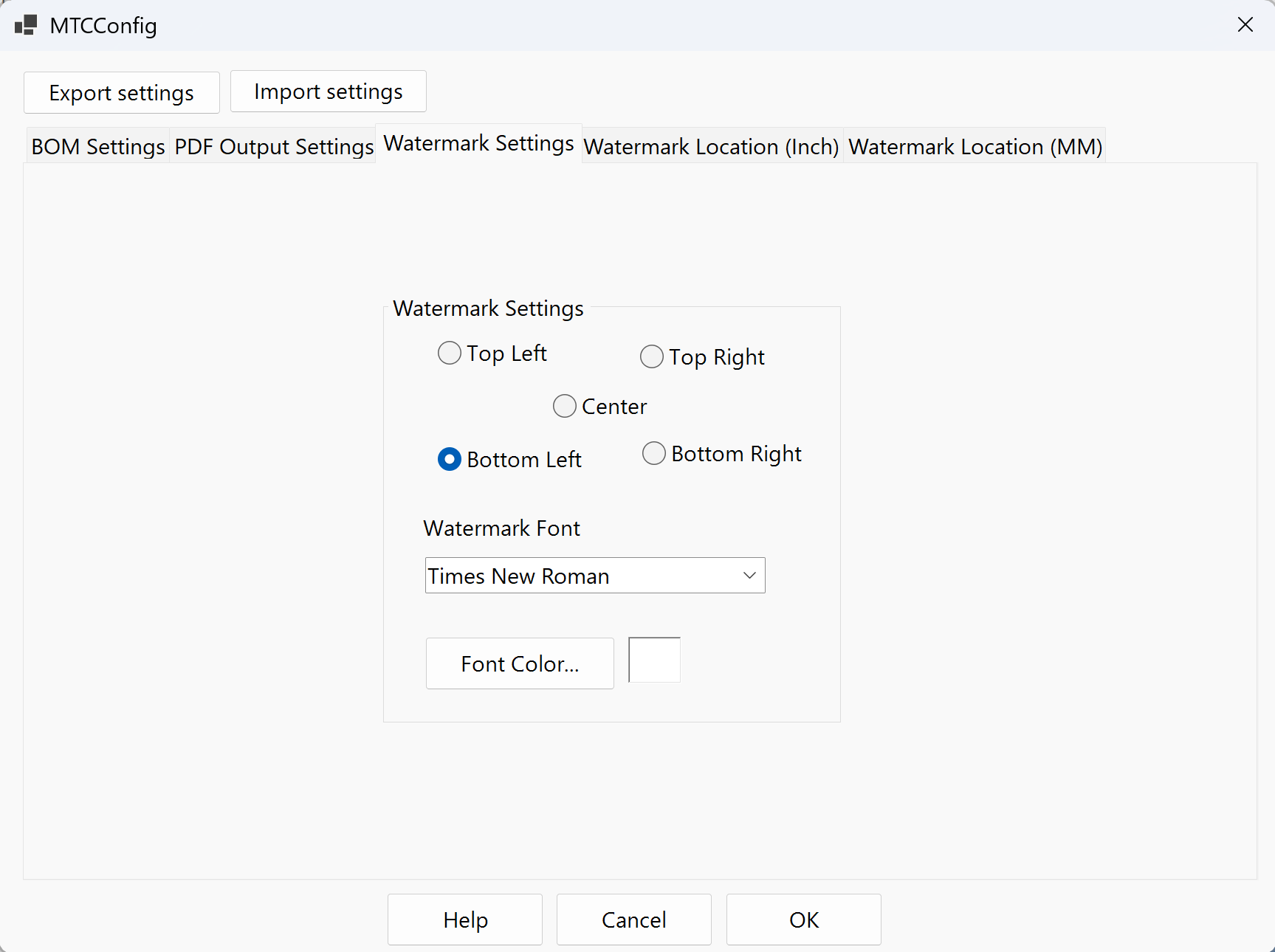
| Option | Description |
|---|---|
| Watermark text | Watermark text |
| Font / Color | Typeface and color |
| Location (inch / mm) | Position according to sheet size |
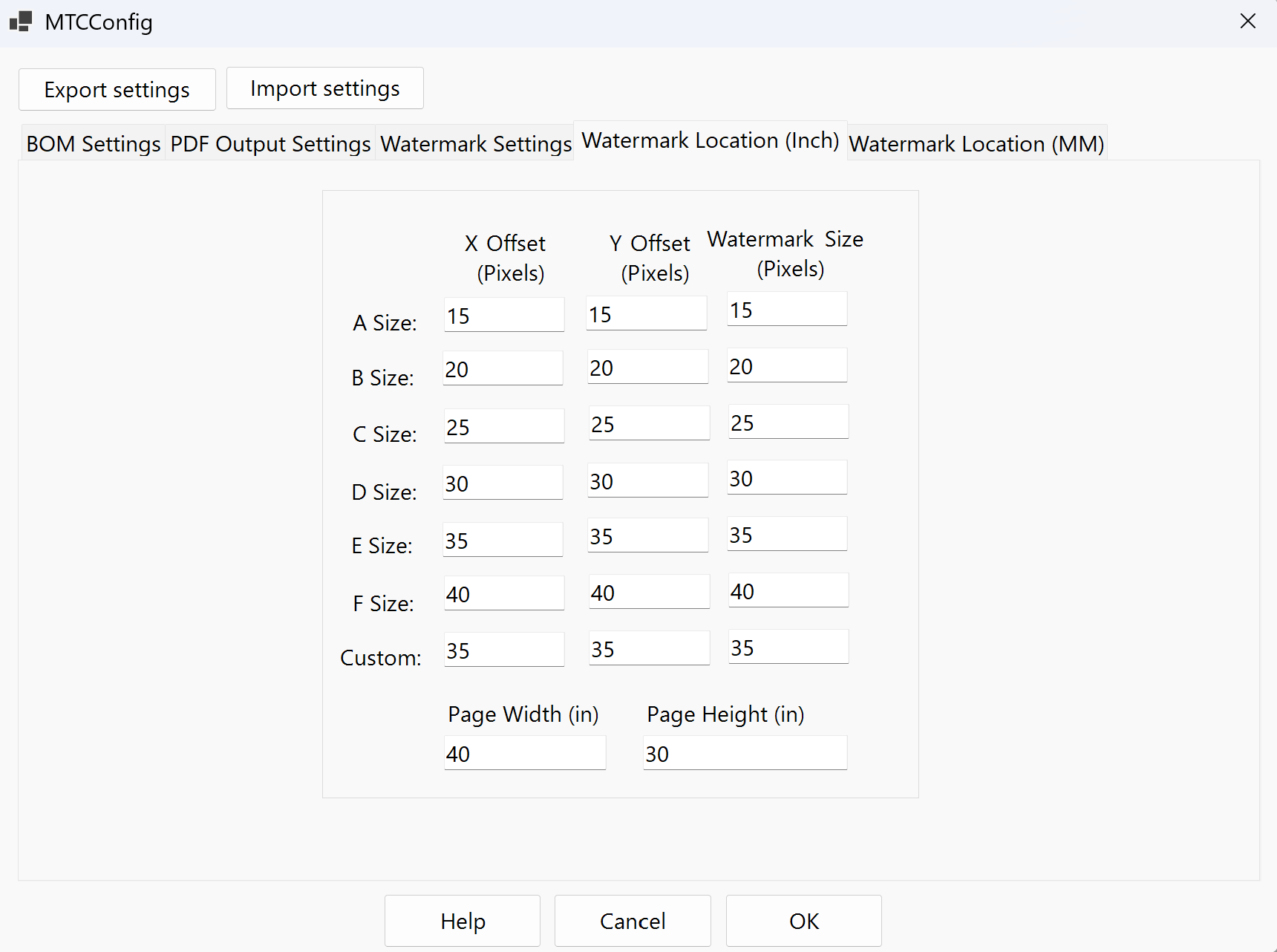
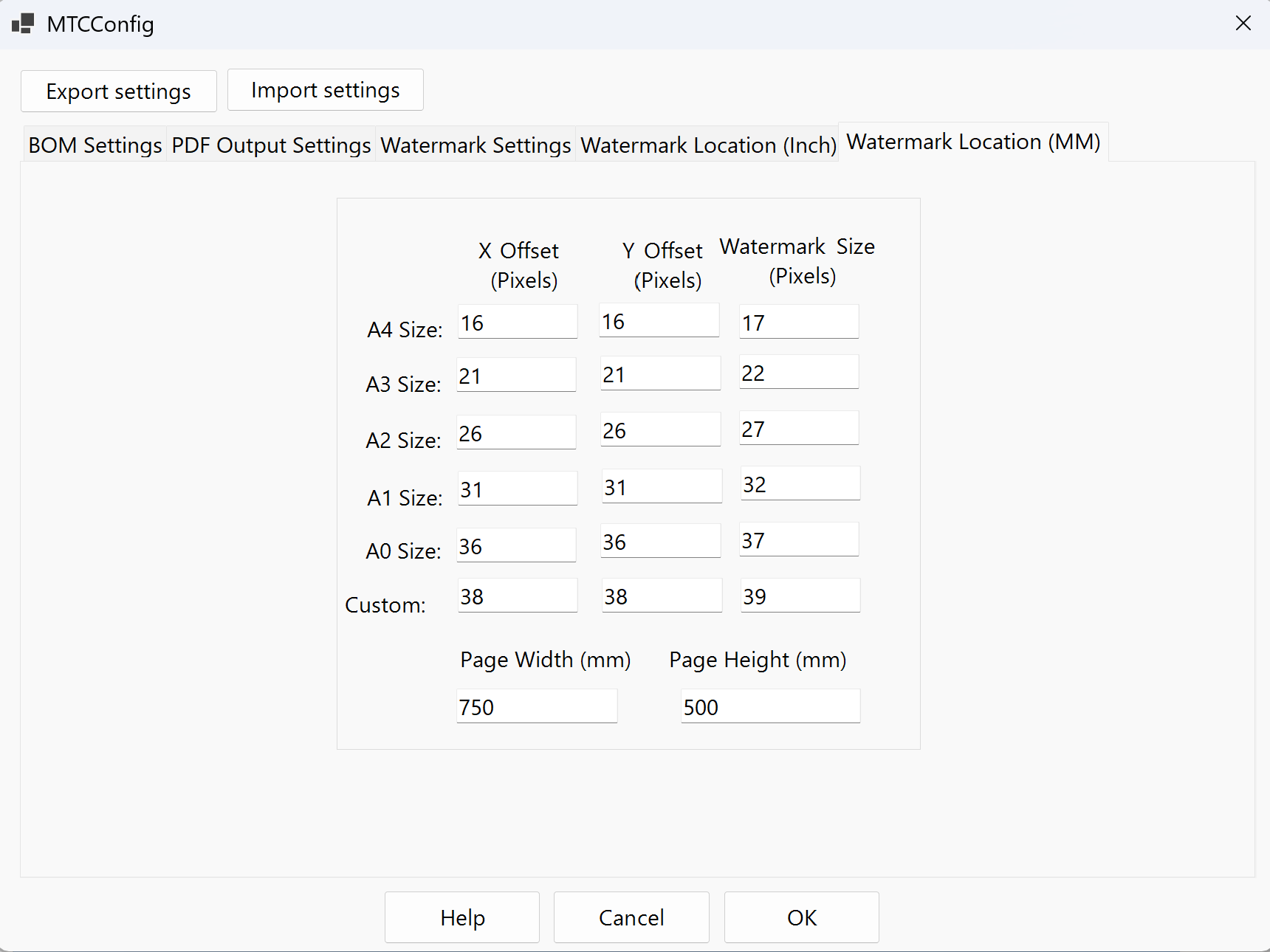
Result
- Exported BOM file (
.xlsx,.xls, or.csv) in the assembly folder - Individual PDFs of associated drawings (if Create PDFs is on)
- Merged PDF (if Merge PDFs is on)
Common errors
| Message | Cause | Solution |
|---|---|---|
| The Default Template file could not be found | No BOM XML template configured, or the fallback does not exist | Settings → Browse → select a valid .xml |
| Assembly must have a Project Number to proceed | Project iProperty is empty | Fill in Project in the assembly Design Tracking Properties |
| The file, [path], cannot be found | BOMPath points to a moved or deleted file |
Update the path in Settings |
| unable to export BOM to desired format | Excel is not installed (xls/xlsx format) | Install Excel or switch export to CSV |
Notes and limitations
- Configure Settings before the first use; opening the dialog and clicking Generate files is not enough.
- Drawings must exist and be referenced correctly in the assembly to generate PDFs.
- Configuration is persisted in
Prj_BOM_to_PDF.dll.confignext to the module DLL (see Configuration). - Long processes on large assemblies can take several minutes.