
The MicroCAD ribbon
All Inventor Tools commands are on the MicroCAD tab of the Inventor ribbon. Visible buttons change with the active document type.
Screenshot pending: overview of the MicroCAD tab in different environments.
Map by environment
No document (ZeroDoc)
Panel: Tools
| Button | Function |
|---|---|
| Set New Project | Create folder structure for a new Inventor project |
| Activate License | Activate or register the license key |
| Auto Save | Configure background auto-save |
Part
Panel: Part Tools
| Button | Function |
|---|---|
| Create Bolt | Create a modeled bolt/screw in the active part |
| Feature Statistics | Analyze features and rebuild times |
| Make Thread | Model threads on cylindrical faces |
| Auto Save | Configure auto-save |
Assembly
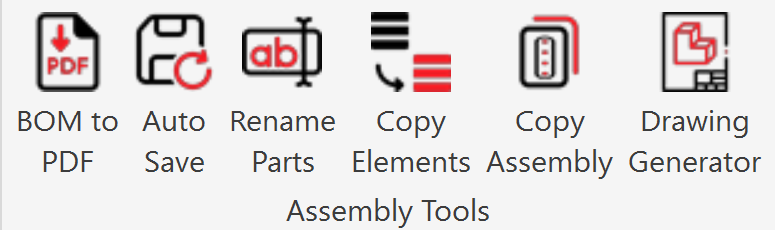
Panel: Assembly Tools
| Button | Function |
|---|---|
| BOM to PDF | Export the BOM and generate PDFs of related drawings |
| Auto Save | Configure auto-save |
| Rename Parts | Rename parts and assemblies in the project |
| Copy Elements | Copy selected components with a new name |
| Copy Assembly | Copy a complete assembly with references |
| Drawing Generator | Batch-generate drawings from parts or assemblies |
Drawing
Panel: Drawing Tools
| Button | Function |
|---|---|
| Scan DWG Views | List drawing views with metadata |
| Copy Design v2 | Copy a complete design from a drawing context (C# version) |
| Copy Design | Copy a design and references (VB version, legacy) |
| Auto Save | Configure auto-save |
| Qr code Generator | Insert a QR code on the drawing |
Presentation
Panel: presentation Tools
| Button | Function |
|---|---|
| Auto Save | Configure auto-save |
Naming notes
Some buttons can be confusing:
| Ribbon name | Clarification |
|---|---|
| Copy Assembly (assembly) | Deep copy of an assembly and its references to new folders |
| Copy Assembly (drawing) | Actually Copy Design v1: copies a full design from the drawing context |
| Copy Design v2 | Modern copy-design version; the tooltip may still say "v1" from legacy code |
License and availability
- All tools require a valid license, except Activate License.
- If the license is invalid, clicking any button shows a warning and the tool does not open.
- Auto Save is available in every environment because it configures global behavior.
Next step
Explore each tool in the side menu, starting with Set New Project or the tool you need for your workflow.